
Remote Desktop Protocol (RDP) is a Microsoft technology that allows you to connect to a Windows computer or server over a network, such as your local network or the internet. Using RDP, you can see the desktop of the remote machine and interact with it as if you were sitting right in front of it.
What is RDP used for?
-
Remote administration: Manage servers or computers without being physically present.
-
Troubleshooting: Diagnose and fix issues on remote machines.
-
Work from anywhere: Access your office computer or server securely from home or another location.
-
Running applications remotely: Use software installed on the server without installing it locally.
⚠️ Note: Because RDP allows full access to your machine, it’s important to secure it with strong passwords, Network Level Authentication, and firewall rules.
This guide will show you how to enable it using Server Manager.
Step 1: Open Server Manager
-
Log in to your server with an administrator account.
-
Open Server Manager (it usually opens automatically on login; otherwise, click Start → Server Manager).
Step 2: Access Local Server Settings
-
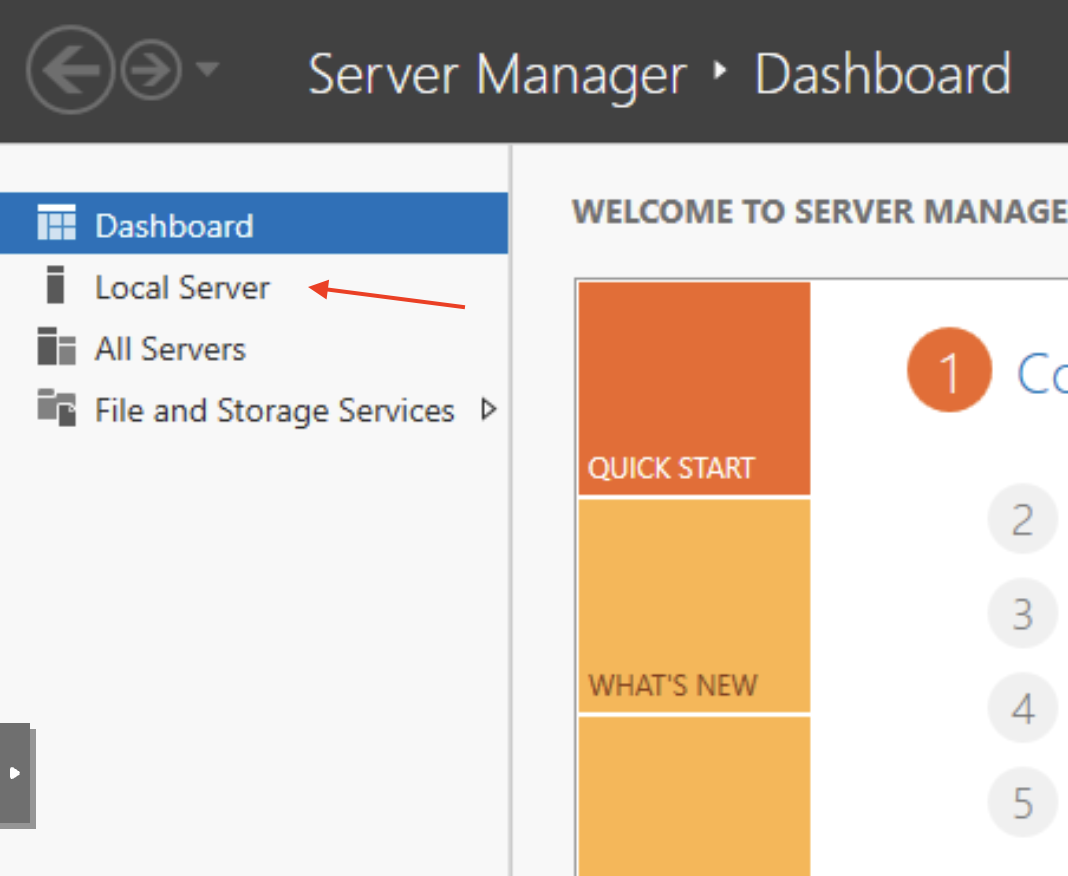
In Server Manager, click Local Server in the left-hand menu.
-
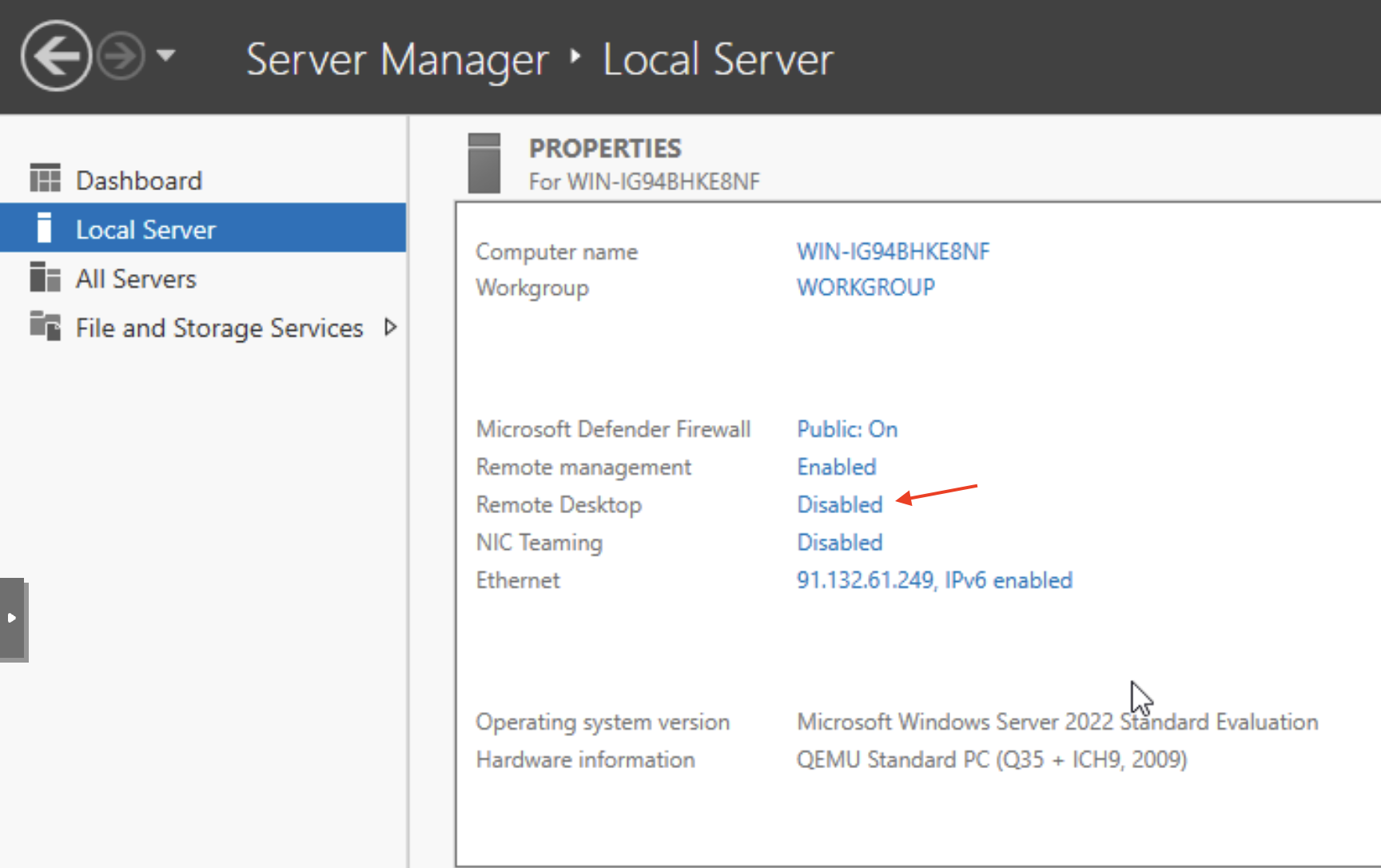
Look for the Remote Desktop section in the right-hand pane. By default, it will show Disabled.
Step 3: Enable Remote Desktop
-
Click the Disabled link next to Remote Desktop.
-
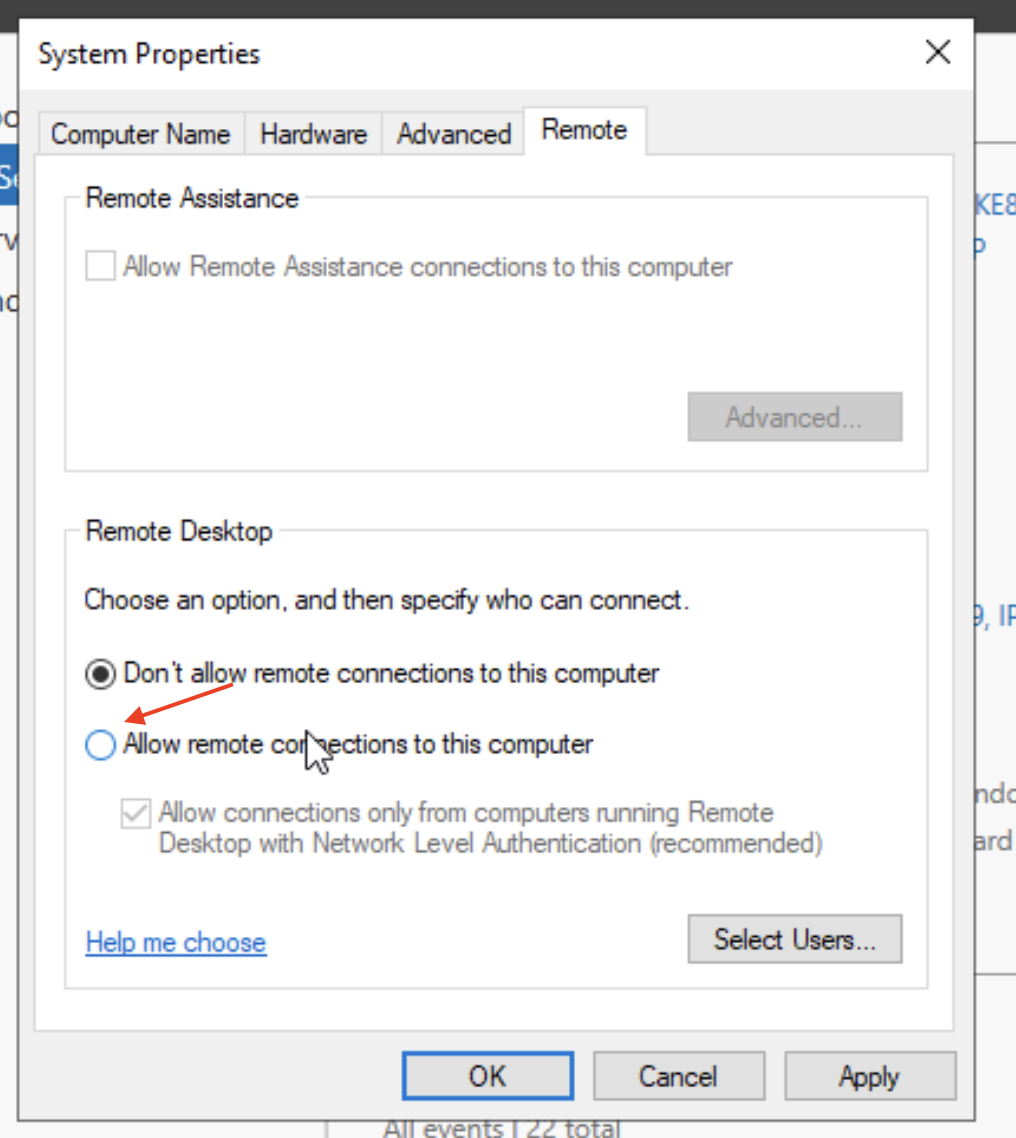
In the System Properties window that appears, select Allow remote connections to this computer.
-
Optionally, check Allow connections only from computers running Remote Desktop with Network Level Authentication (recommended) for extra security.
-
Click OK to apply the changes.
Step 4: Verify Windows Firewall Settings
-
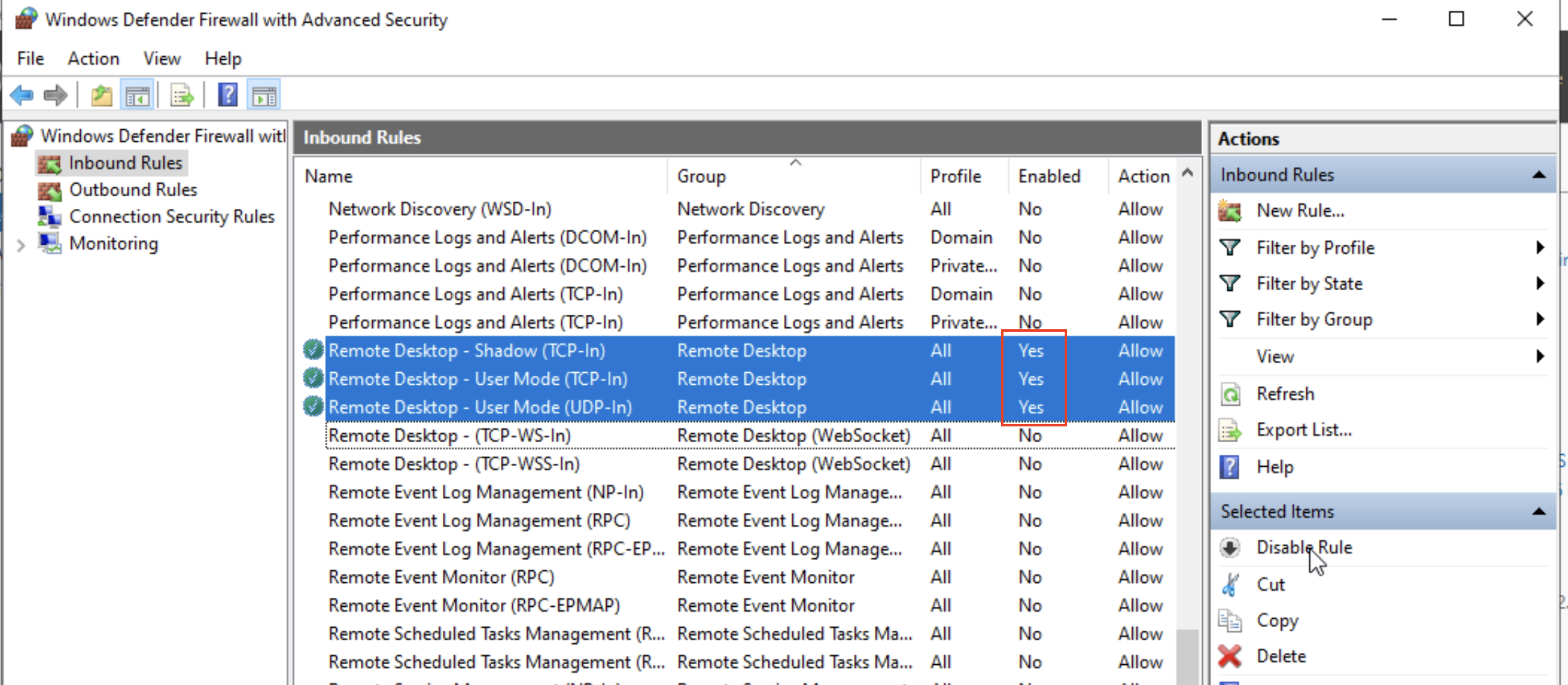
Enabling RDP through Windows Firewall:
-
Press Windows + R, type
wf.msc, and press Enter. -
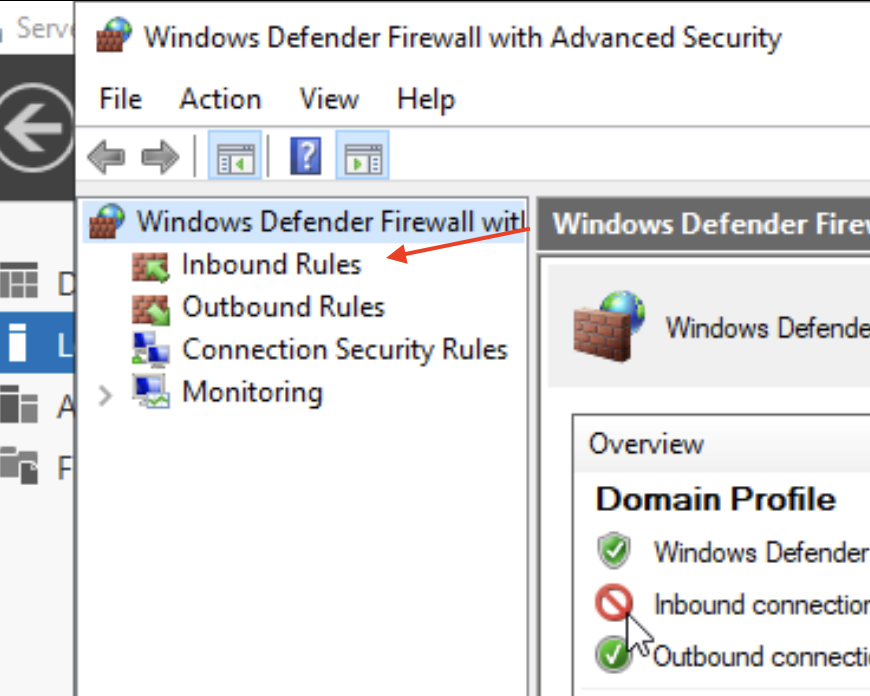
In Windows Defender Firewall with Advanced Security, click Inbound Rules.
-
Ensure Remote Desktop - User Mode (TCP-In) rules are Enabled.
-
Step 5: Connect via Remote Desktop
-
From your local computer, open Remote Desktop Connection (press Windows + R, type
mstsc, Enter). -
Enter the IP address or hostname of your server and click Connect.
-
Log in using your server administrator credentials.
Step 6: Troubleshooting
If you cannot connect:
-
Check that TCP port 3389 is open on your firewall.
-
Ensure the server is reachable via network.
-
Confirm the username and password are correct.
Security Recommendations
-
Always use strong administrator passwords.
-
Keep Network Level Authentication (NLA) enabled.
-
Consider changing the default RDP port to reduce exposure to attacks.
-
Keep your server fully updated for security patches.